


Author: Derrick D. Jackson
Title: Founder & Senior Director of Cloud Security Architecture & Risk
Credentials: CISSP, CRISC, CCSP
Last updated January 16th, 2026
Hello Everyone, Help us grow our community by sharing and/or supporting us on other platforms. This allow us to show verification that what we are doing is valued. It also allows us to plan and allocate resources to improve what we are doing, as we then know others are interested/supportive.
Table of Contents
What Is IT Logging?
You clocked out three hours ago (or so you thought). You’re on the couch, halfway through a movie with the family (or maybe it’s the fourth quarter of a close game with a cold drink in hand). Then your phone buzzes. A critical alert. F%^&^%!. You check the notification: “Potential unauthorized access detected on production database server.”
Your security team pulls up the logs. Within minutes, they know exactly what happened: an external IP tried 47 failed logins against a service account, succeeded on attempt 48, and immediately queried the customer table. The logs reveal when it started, what credentials were used, and what data was touched. The incident gets contained before the credits roll.
That scenario plays out differently without logs. The team spends the weekend guessing. Maybe they find the breach. Maybe they don’t. Logs are the difference between knowing and hoping.
This guide explains what logs are, what they actually look like, why they matter for security and compliance, and how to start building your understanding.
What Is a Log?
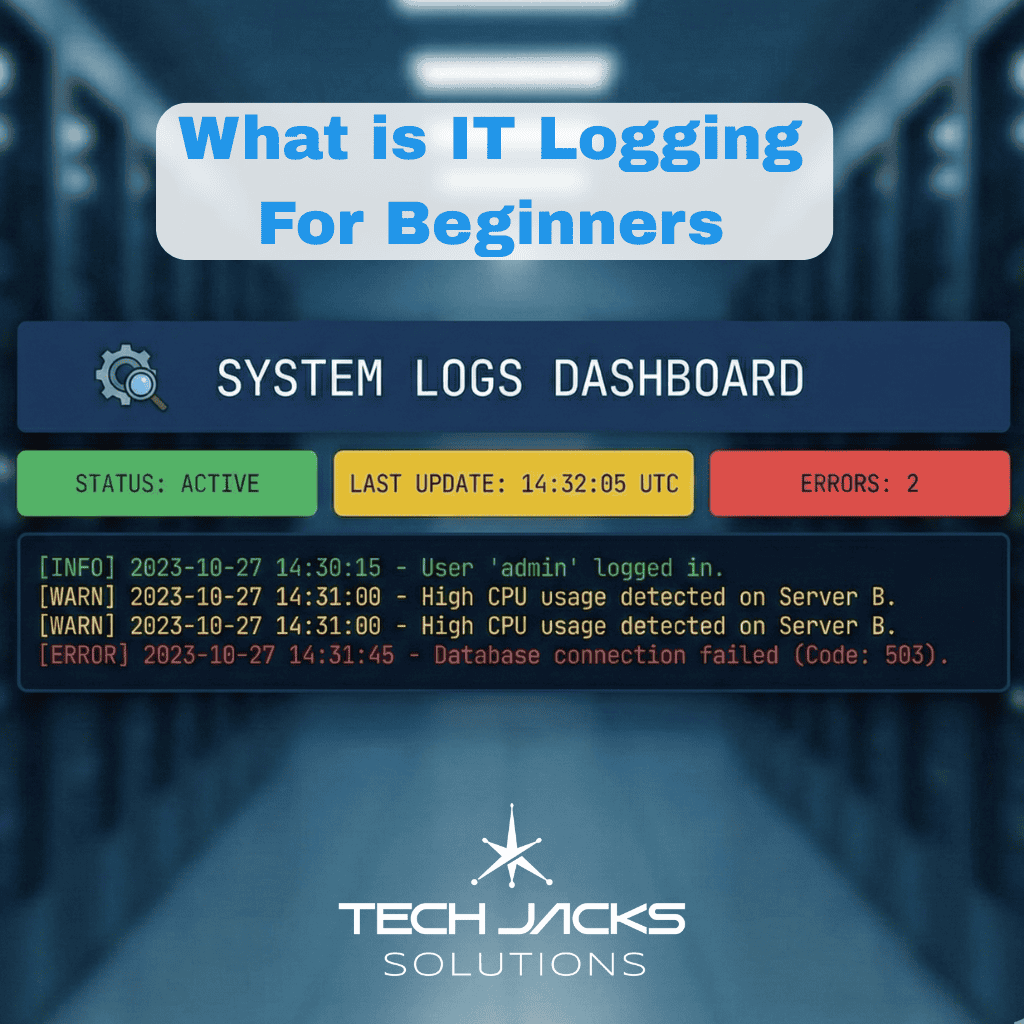
A log is a record of something that happened in a computer system.
Every time a user logs in, a file gets accessed, an application throws an error, or a firewall blocks a connection, the system can write down what happened, when it happened, and who (or what) caused it. That written record is a log.
NIST SP 800-92, the federal guidance on log management, defines logs as “records of events occurring within computing assets.” Those assets include servers, network devices, cloud services, applications, and everything in between.
Log management is the complete process: generating logs, moving them to a central location, storing them appropriately, analyzing them for problems, and eventually deleting them securely.
Two Log Types Worth Knowing
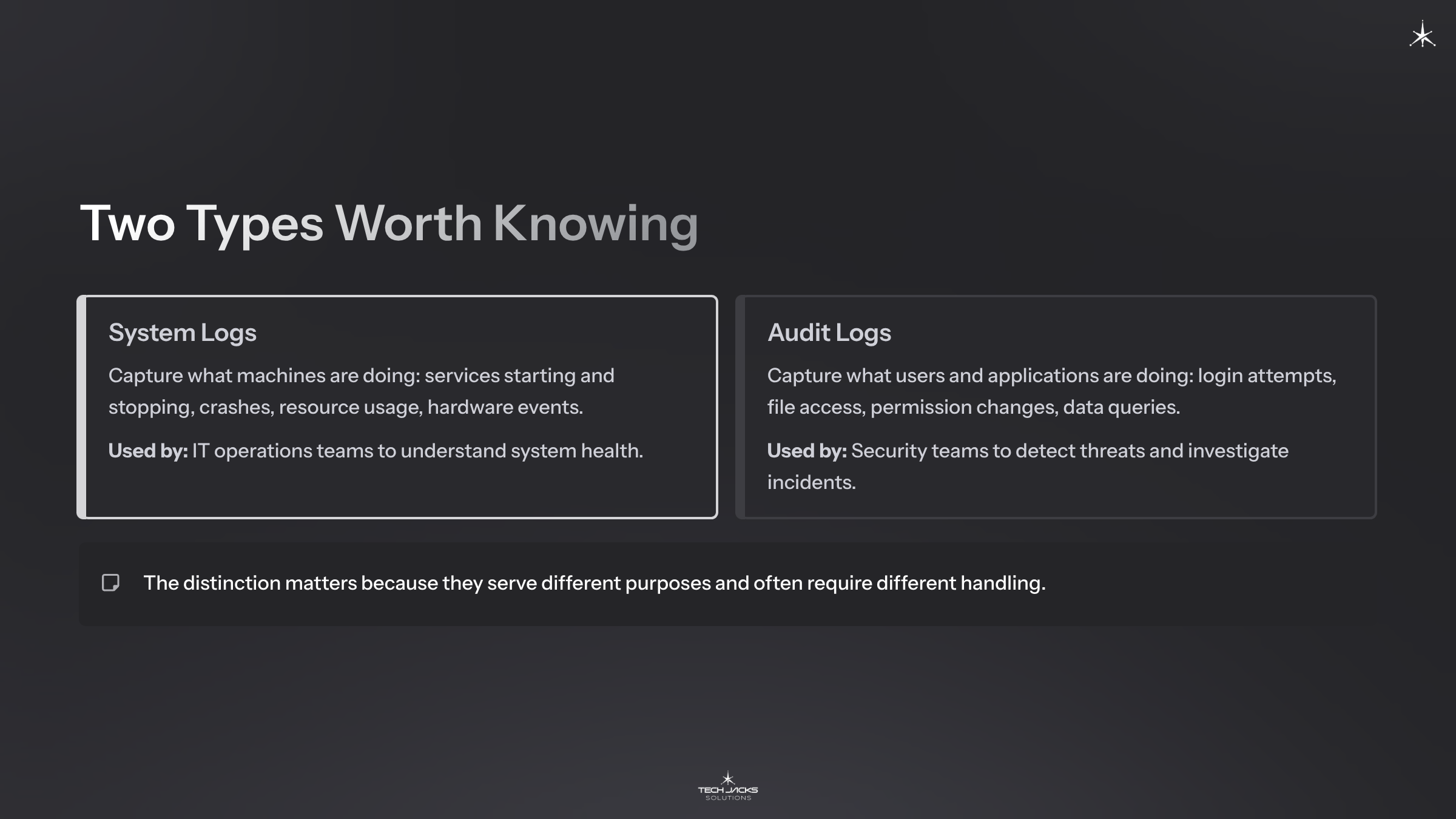
System logs capture what machines are doing: services starting and stopping, crashes, resource usage, hardware events. IT operations teams use these to understand system health.
Audit logs capture what users and applications are doing: login attempts, file access, permission changes, data queries. Security teams use these to detect threats and investigate incidents.
The distinction matters because they serve different purposes and often require different handling.
What Do Logs Actually Look Like?
Most explanations describe log formats abstractly. Let’s look at real examples instead.
Syslog (Network Devices)
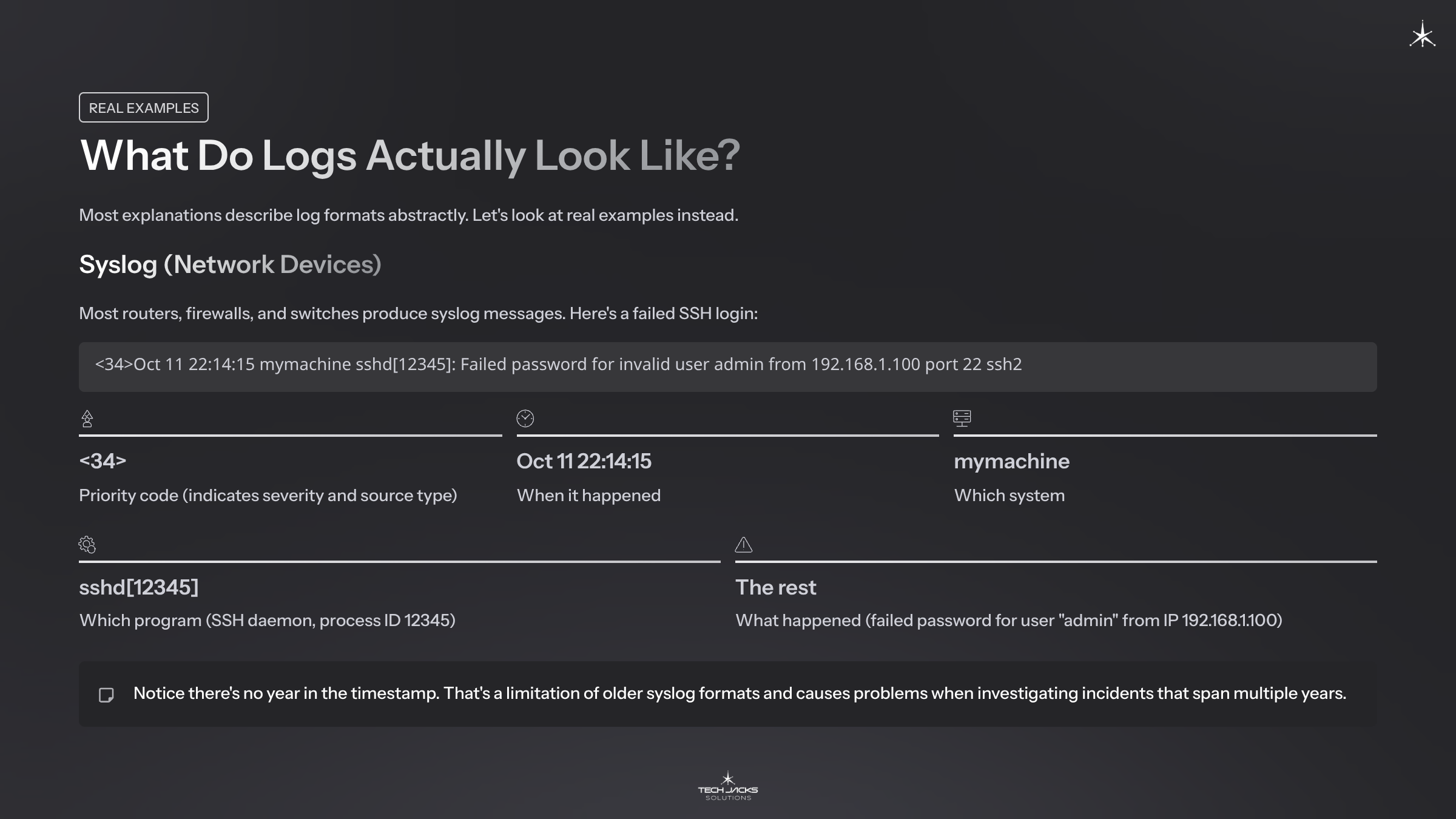
Most routers, firewalls, and switches produce syslog messages. Here’s a failed SSH login:
<34>Oct 11 22:14:15 mymachine sshd[12345]: Failed password for invalid user admin from 192.168.1.100 port 22 ssh2Breaking it down:
- <34> = Priority code (indicates severity and source type)
- Oct 11 22:14:15 = When it happened
- mymachine = Which system
- sshd[12345] = Which program (SSH daemon, process ID 12345)
- The rest = What happened (failed password for user “admin” from IP 192.168.1.100)
Notice there’s no year in the timestamp. That’s a limitation of older syslog formats and causes problems when investigating incidents that span multiple years.
JSON (Cloud and Modern Applications)
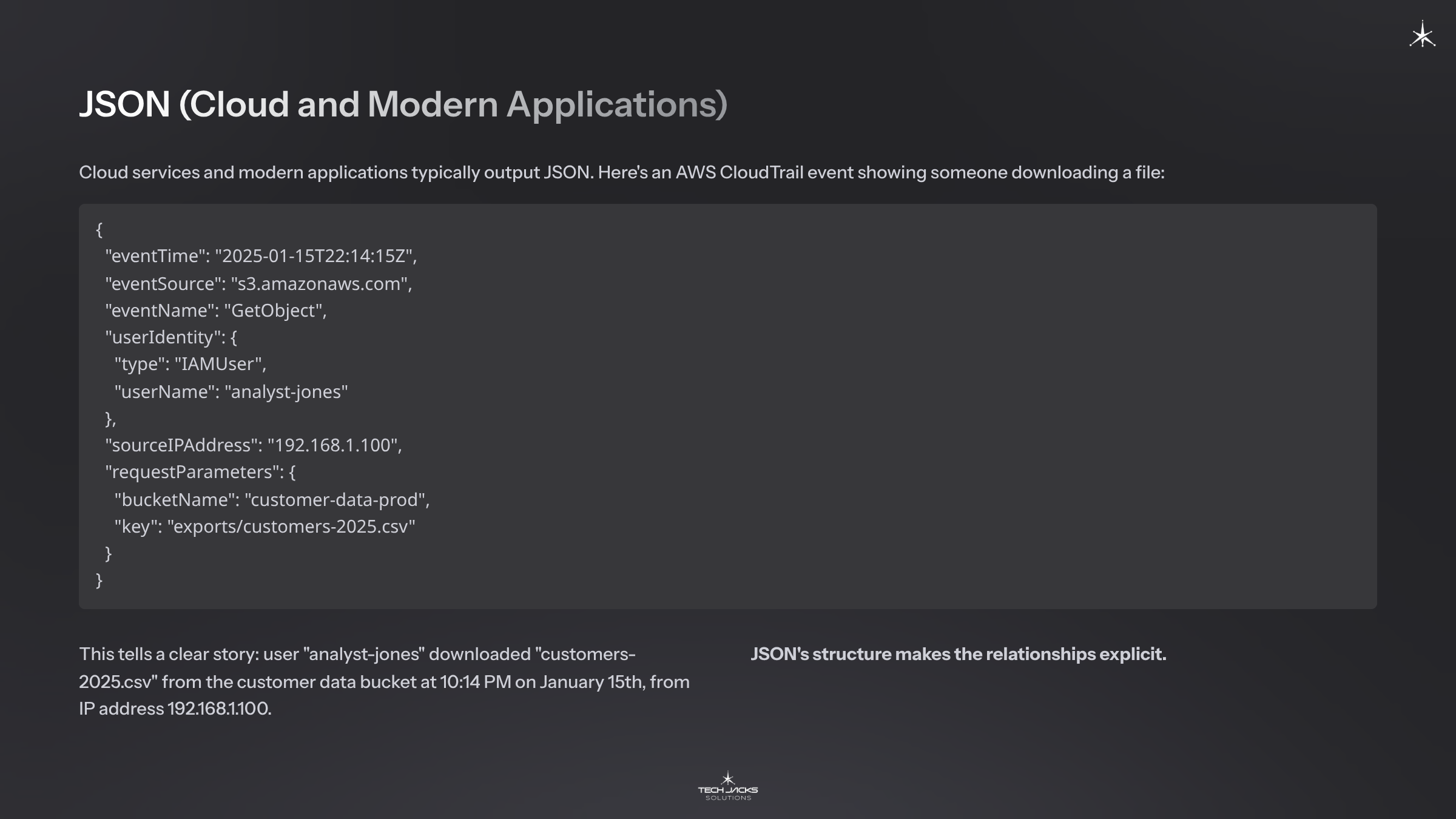
Cloud services and modern applications typically output JSON. Here’s an AWS CloudTrail event showing someone downloading a file:
{

  "eventTime": "2025-01-15T22:14:15Z",

  "eventSource": "s3.amazonaws.com",

  "eventName": "GetObject",

  "userIdentity": {

    "type": "IAMUser",

    "userName": "analyst-jones"

  },

  "sourceIPAddress": "192.168.1.100",

  "requestParameters": {

    "bucketName": "customer-data-prod",

    "key": "exports/customers-2025.csv"

  }

}
This tells a clear story: user “analyst-jones” downloaded “customers-2025.csv” from the customer data bucket at 10:14 PM on January 15th, from IP address 192.168.1.100. JSON’s structure makes the relationships explicit.
Windows Event Log
Windows uses a different format entirely. Here’s what a failed login (Event ID 4625) looks like in Event Viewer:
Event ID: 4625
Log Name: Security
Time: 2025-01-15T22:14:15.123Z
Computer: DC01.corp.example.com
Account Name: admin
Failure Reason: Unknown user name or bad password
Source Network Address: 192.168.1.100
Logon Type: 3
“Logon Type: 3” means network login (someone connecting remotely). Type 10 would mean RDP. Type 2 means someone physically at the keyboard. These details help investigators understand how access occurred.
Try it yourself: On any Windows computer, search for “Event Viewer” in the Start menu. Click Windows Logs → Security. You’re now looking at real security audit logs on that machine.
Why Logs Matter
Security Investigations
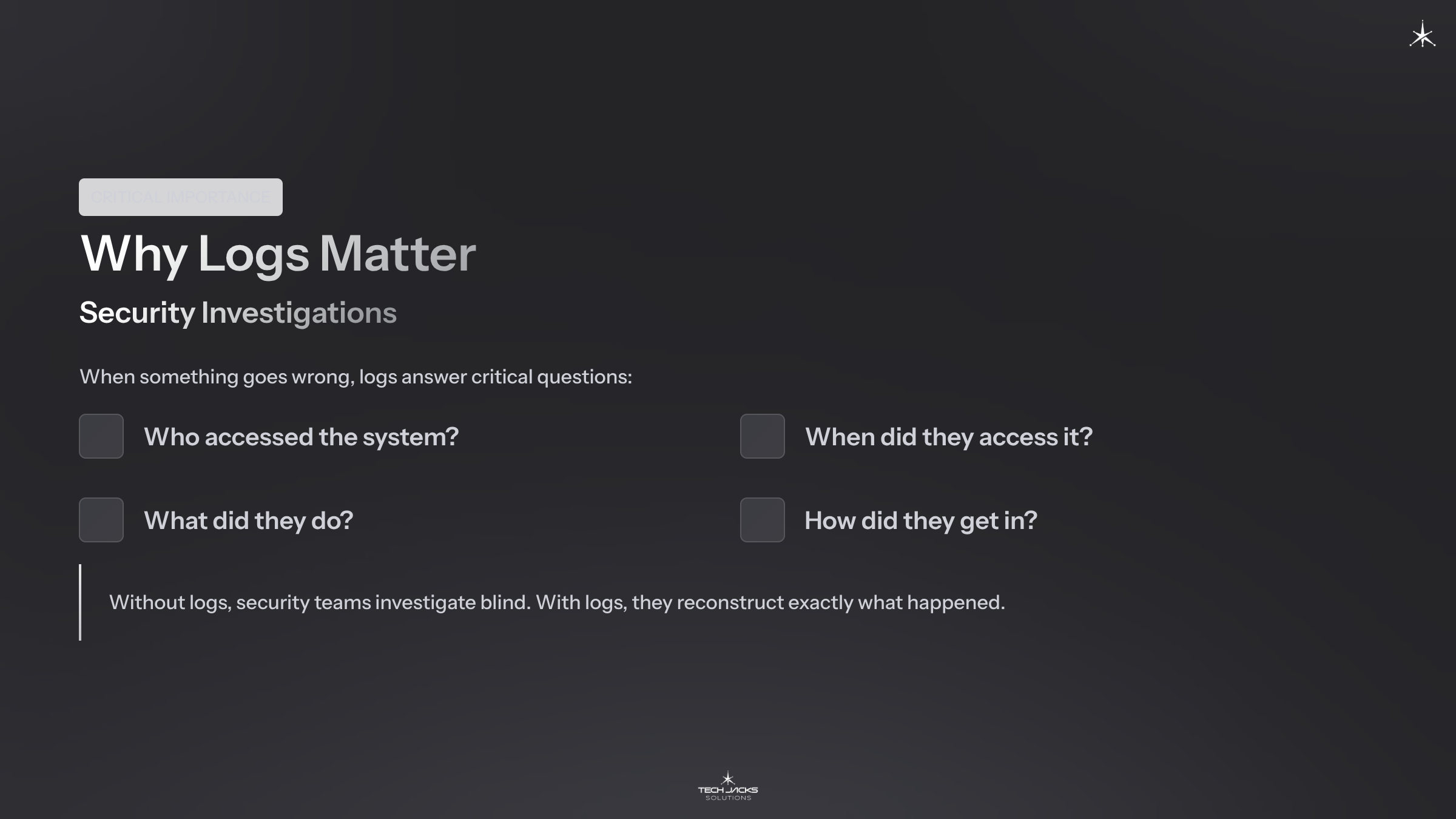
When something goes wrong, logs answer critical questions:
- Who accessed the system?
- When did they access it?
- What did they do?
- How did they get in?
Without logs, security teams investigate blind. With logs, they reconstruct exactly what happened.

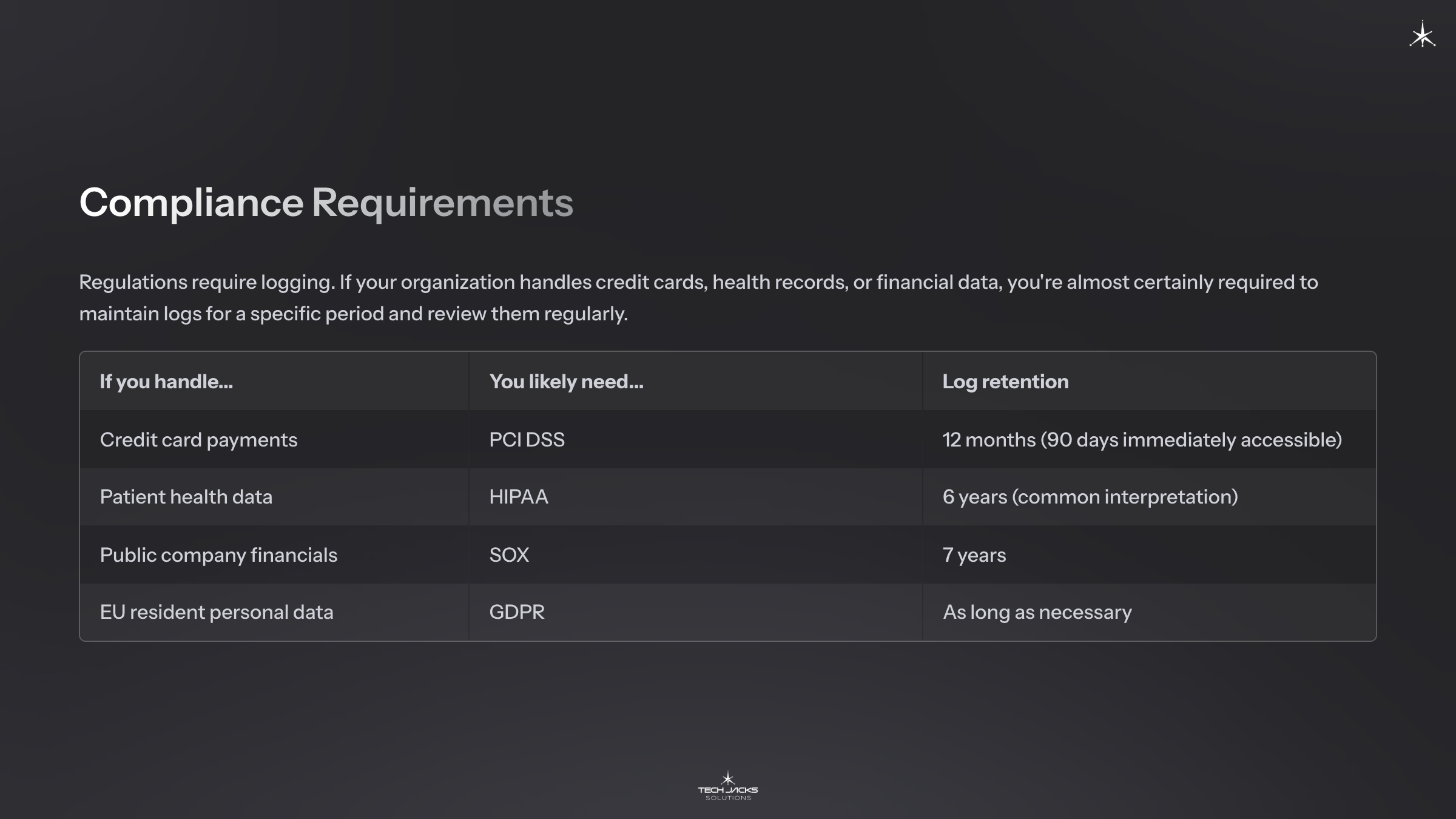
Compliance Requirements
Regulations require logging. If your organization handles credit cards, health records, or financial data, you’re almost certainly required to maintain logs for a specific period and review them regularly.
| If you handle… | You likely need… | Log retention |
| Credit card payments | PCI DSS | 12 months (90 days immediately accessible) |
| Patient health data | HIPAA | 6 years (common interpretation) |
| Public company financials | SOX | 7 years |
| EU resident personal data | GDPR | As long as necessary |
Operational Troubleshooting
Logs aren’t just for security. When an application crashes, logs reveal what happened before the crash. When performance degrades, logs show what changed. Operations teams rely on logs daily.

How Logs Flow Through an Organization
Understanding the path helps you identify where gaps might exist.
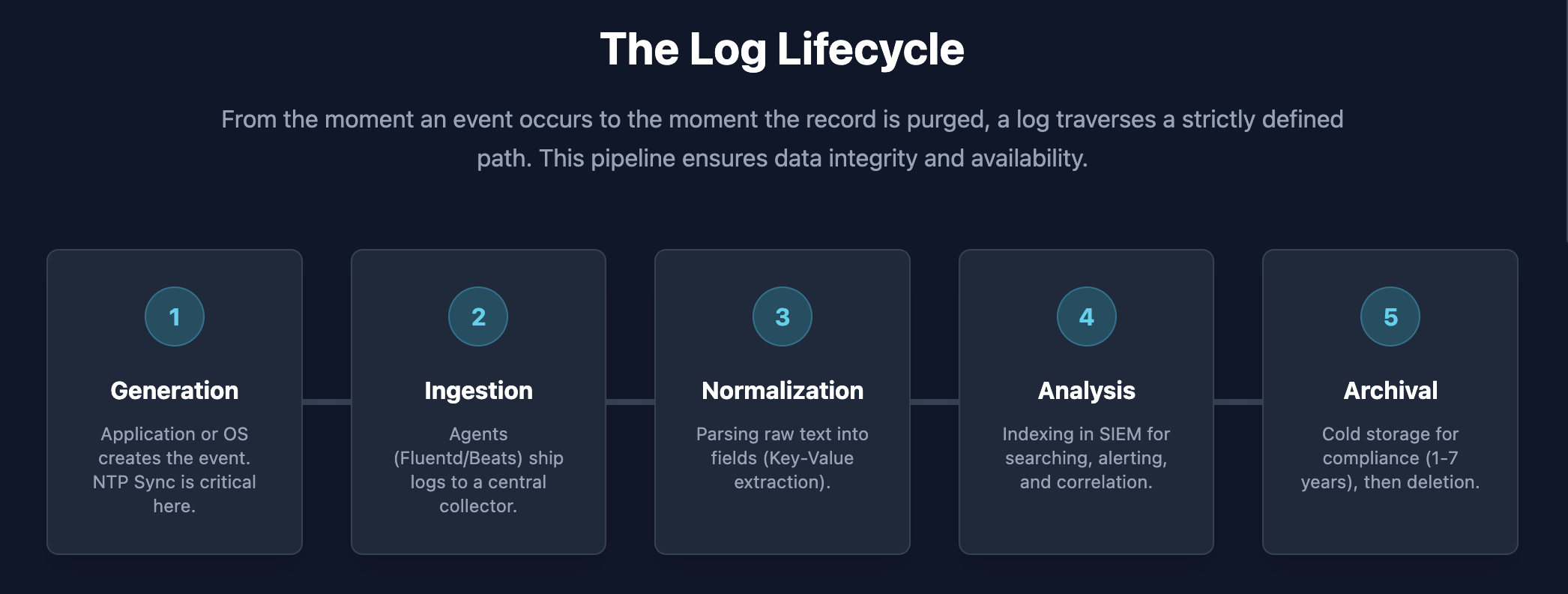
1. Generation: Something happens on a system. The system writes a log entry.
2. Collection: An agent or service picks up the log and sends it somewhere central. Small organizations might send logs directly to a SIEM. Larger organizations route logs through aggregation layers first.
3. Processing: Raw logs get parsed and normalized. “Normalization” means converting different formats into a consistent structure. One system might call it “src_ip” while another calls it “SourceAddress.” Normalization ensures both become “source.ip” so you can search once and find everything.
4. Storage: Logs get stored in tiers based on how quickly you need access:
- Hot storage (recent logs, fast access)
- Warm storage (older logs, slower access)
- Cold storage (archived logs, cheapest but slowest)
5. Analysis: Security teams search logs, build alerts, and investigate incidents. This is where a SIEM (Security Information and Event Management) platform comes in. SIEMs collect logs from across the organization and help analysts find threats.

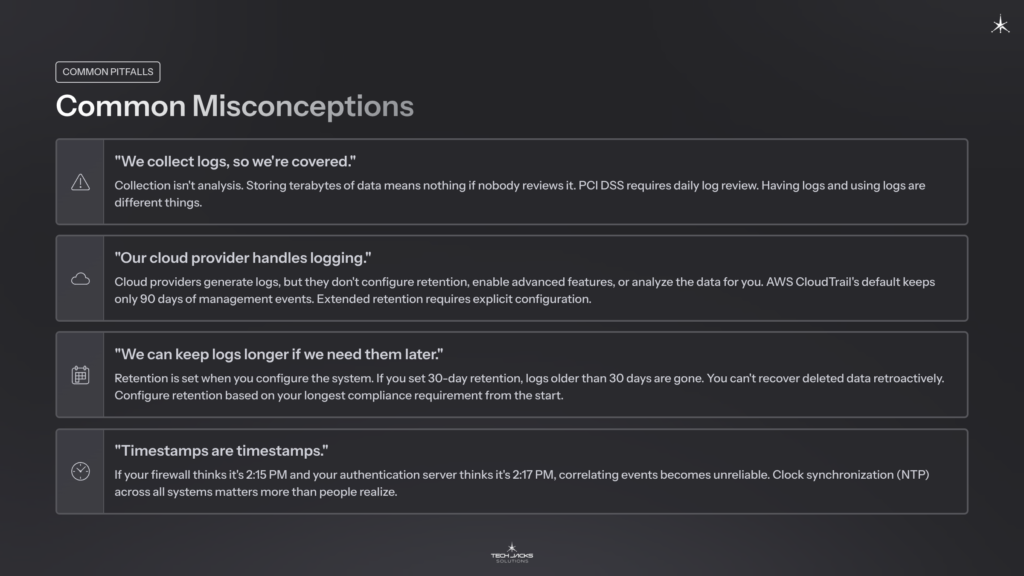
Common Misconceptions
“We collect logs, so we’re covered.”
Collection isn’t analysis. Storing terabytes of data means nothing if nobody reviews it. PCI DSS requires daily log review. Having logs and using logs are different things.
“Our cloud provider handles logging.”
Cloud providers generate logs, but they don’t configure retention, enable advanced features, or analyze the data for you. AWS CloudTrail’s default keeps only 90 days of management events. Extended retention requires explicit configuration. Microsoft 365 audit log retention varies by license (180 days for standard licenses, up to a year for E5).
“We can keep logs longer if we need them later.”
Retention is set when you configure the system. If you set 30-day retention, logs older than 30 days are gone. You can’t recover deleted data retroactively. Configure retention based on your longest compliance requirement from the start.
“Timestamps are timestamps.”
If your firewall thinks it’s 2:15 PM and your authentication server thinks it’s 2:17 PM, correlating events becomes unreliable. Clock synchronization (NTP) across all systems matters more than people realize.
Getting Started: A Four-Week Path
Week 1: See What Logs Look Like
- Open Windows Event Viewer and browse Security logs
- Ask your IT team: “Do we have a SIEM? What logs do we collect centrally?”
- Look at a few log entries and try to understand what they’re recording
Week 2: Understand Your Requirements
- Determine which compliance frameworks apply to your organization
- Find out how long you’re required to keep logs
- Ask: “Do we meet these requirements today?”
Week 3: Identify Critical Log Sources
- Are authentication systems (Active Directory, Okta, etc.) sending logs centrally?
- Are firewall and network device logs being collected?
- What about cloud services (AWS, Azure, Microsoft 365)?
Week 4: Test Basic Capabilities
- Can your organization search for a specific IP address across all log sources?
- How long does it take to retrieve logs from 30 days ago?
- If something suspicious happened right now, who would investigate and how?
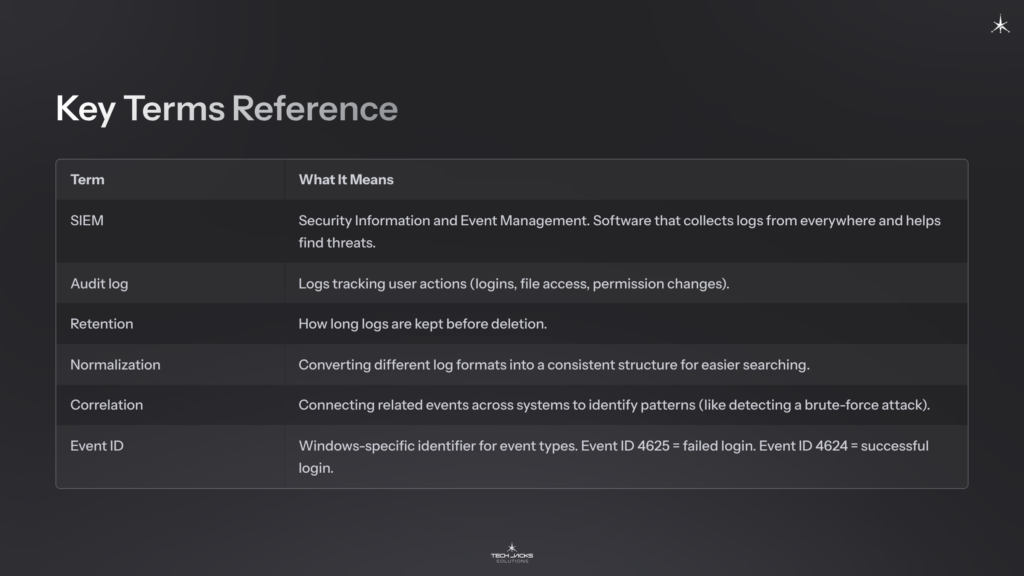
Key Terms Reference
| Term | What It Means |
| SIEM | Security Information and Event Management. Software that collects logs from everywhere and helps find threats. |
| Audit log | Logs tracking user actions (logins, file access, permission changes). |
| Retention | How long logs are kept before deletion. |
| Normalization | Converting different log formats into a consistent structure for easier searching. |
| Correlation | Connecting related events across systems to identify patterns (like detecting a brute-force attack). |
| Event ID | Windows-specific identifier for event types. Event ID 4625 = failed login. Event ID 4624 = successful login. |
Next Steps
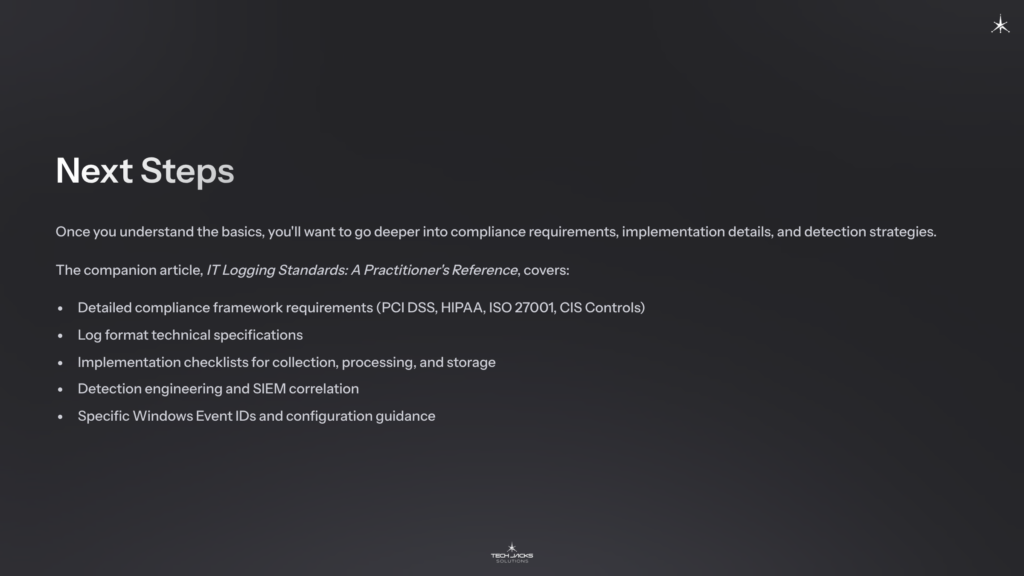
Once you understand the basics, you’ll want to go deeper into compliance requirements, implementation details, and detection strategies. The companion article, IT Logging Standards: A Practitioner’s Reference, covers:
- Detailed compliance framework requirements (PCI DSS, HIPAA, ISO 27001, CIS Controls)
- Log format technical specifications
- Implementation checklists for collection, processing, and storage
- Detection engineering and SIEM correlation
- Specific Windows Event IDs and configuration guidance
Ready to Test Your Knowledge?
Resources for Learning More
Foundational Standards
Hands-On Learning
- Windows Event Viewer (built into every Windows machine)
- MITRE ATT&CK Framework (understanding what attackers do helps you understand what to log)
Free Tools to Explore
- Wazuh (open-source SIEM)
- Elastic Stack (log collection and analysis)
